The default settings in Arc Raiders weren’t built for PvPvE. Motion blur smears your screen mid-firefight, the field of view is cropped tight, and aim assist comes in stronger than most competitive players want. One bad gunfight ends a whole run, so getting your settings right matters just as much as your best PvP weapons before you drop into the Rust Belt.
Here’s the fast version: switch to Performance Mode, push FOV to max, turn motion blur off, and tighten your deadzones. The rest of this guide covers display mode, graphics, sensitivity, audio, and the DualSense features actually worth using.
Table of Contents
- Display Mode: Performance vs. Quality vs. 120Hz
- Core Graphics Settings PS5 Players Can Actually Change
- Brightness, Visibility, and the No-HDR Problem
- Best Controller Sensitivity and Aim Settings
- Aim Assist and Interact/Reload Behavior
- DualSense Features Worth Using
- Audio Settings for Tracking Enemies
- Quick Setup vs. Deep Tuning
- Key Takeaways
- FAQ
Display Mode: Performance vs. Quality vs. 120Hz
PS5 players currently get three display options in Arc Raiders.
| Mode | Resolution | Frame Rate | Best For |
|---|---|---|---|
| Performance | 1440p (upscaled to 4K) | 60 FPS | Most players, balances clarity and responsiveness |
| Quality | Native 4K | 30 FPS | Screenshots and exploring, not combat |
| 120Hz Mode | 1080p | 120 FPS | Players with a 120Hz display who want the lowest input lag |
Performance Mode is the right call for almost everyone. It holds a stable 60 FPS and still looks sharp at upscaled 4K. If your TV or monitor supports 120Hz, that mode trades some resolution for the lowest input lag in the game, which matters in close-range PvP. Quality Mode’s 30 FPS cap is a real disadvantage in a fight, so save it for screenshots between raids.
One thing worth knowing if you’ve had the game a while: these three modes weren’t there at launch. Arc Raiders shipped on October 30, 2025 with a single graphics mode on PS5, and the Performance/Quality/120Hz split came later in an update. If you’re working from an older guide or a screenshot that only shows one mode, that’s why.
[Visual 1]
- Alt text: Display modes
- AI prompt: “Clean infographic-style comparison table for a video game settings menu, three columns labeled Performance Mode, Quality Mode, and 120Hz Mode, showing resolution and frame rate icons, dark UI theme with teal accent highlights, modern flat design, no text logos”
Core Graphics Settings PS5 Players Can Actually Change
This is the part most settings guides get wrong for console players. A lot of “Arc Raiders best settings” content is written for PC first and just assumes the same sliders exist on PS5. They don’t. PS5 has no individual controls for shadows, textures, foliage, reflections, global illumination, ray tracing, or upscaling method (DLSS/FSR/TSR) - those are PC-only settings tied to your graphics card. On console, the entire visual load is handled for you by the display mode you picked above.
What you can actually touch on PS5:
| Setting | Default | Recommended | Why |
|---|---|---|---|
| Field of View | 70 | 80 (max) | Wider peripheral vision helps you spot ARC machines and rival Raiders before they spot you |
| Motion Blur | On | Off | Keeps the screen clear during turns and fast movement instead of smearing your tracking |
| Motion Blur Intensity | 100 | N/A (irrelevant once Motion Blur is off) | Only matters if you choose to leave Motion Blur on |
Max FOV does shrink objects slightly at a distance, which can matter on a smaller screen. If you play on anything under about 32 inches, try 75 before committing to the full 80. A wider view also helps you clock threats from the enemies guide before they close the distance.
[Visual 2]
- Alt text: PS5 graphics menu
- AI prompt: “Realistic photo concept of a PlayStation 5 game settings menu displayed on a TV screen in a dim living room, focus on a graphics options list, DualSense controller resting in foreground, moody blue lighting, shallow depth of field”
Brightness, Visibility, and the No-HDR Problem
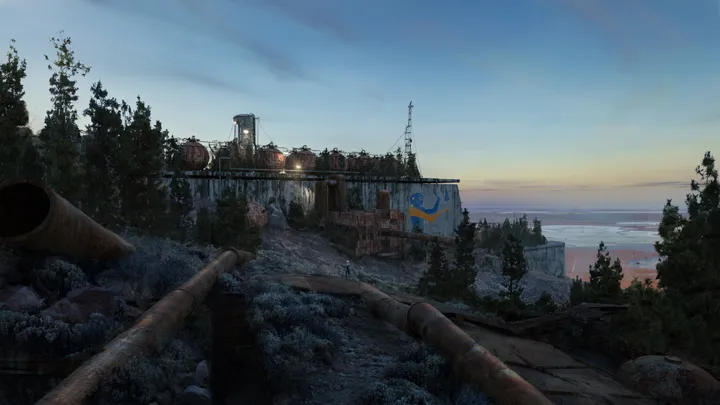
Arc Raiders leans hard into darkness. Night raids, subway tunnels, and indoor sections at the Dam and Buried City are all designed around limited visibility, and the PS5 version doesn’t help you compensate. There’s no in-game brightness or gamma slider, and the game doesn’t support HDR output.
That means how dark the game looks depends entirely on your TV, not on anything you can adjust in the settings menu. A few practical fixes:
- If your TV has a “Game” or “Vivid” picture mode, try it. It often brightens shadow detail without you touching anything in-game.
- OLED panels can sometimes look blown-out and foggy in Arc Raiders rather than too dark - if that’s your problem, a more neutral picture mode helps more than a bright one.
- Lean on in-world light sources. Flashlights and glow sticks are the intended way to navigate dark interiors, since the game isn’t giving you a slider to fake it.
If you’re regularly losing fights because you genuinely can’t see in dark zones, this is a TV setting problem before it’s a game setting problem. Check the loot map ahead of time so you’re not relying on visibility alone to find your way through the darker zones.
Best Controller Sensitivity and Aim Settings
| Setting | Wiki Default | Recommended | Why |
|---|---|---|---|
| Horizontal Sensitivity | 80 | 90-100 | Faster turns without sacrificing much control |
| Vertical Sensitivity | 60 | 65-70 | Keep slightly lower than horizontal for stable vertical tracking |
| Zoom Sensitivity Multiplier | 25% | 35-40% | Lower ADS sensitivity than hipfire improves tracking and recoil control while aiming |
| Scoped Zoom Sensitivity Multiplier | 50% | 50-55% | Scoped sights need their own multiplier since zoom level changes how far the stick moves your view |
| Look Response Curve | Exponential | Linear | Maps stick input 1:1 instead of ramping, which makes small adjustments and flicks more predictable |
| Look Inner Deadzone | 5 | 3-6 | Lower if your controller has no drift, to improve micro-aim on weak points |
| Movement Inner Deadzone | 15 | 10-15 | Can go lower than the look deadzone since stray movement input is less punishing than stray aim input |
A quick note on those sensitivity numbers: several settings guides for this game repeat a “75 horizontal, 60 vertical” starting point without saying where it came from. That doesn’t match Arc Raiders’ actual default of 80 horizontal and 60 vertical. It’s not a huge gap, but if you’re trying to compare your current setup against the real baseline, the 80/60 default is the accurate one to start from.
Change one setting at a time and play a full raid before adjusting again. Big jumps make it hard to tell what’s actually helping, especially if you’re also adjusting your best loadout at the same time.
Two more settings worth knowing about, even though they’re easy to miss in the menu: Look Boost and Crosshair customization. Look Boost (and its zoomed equivalent) adds a burst of extra turn speed once you push the stick all the way to one side, which helps with fast 180s without raising your base sensitivity. Default sits around 55 for horizontal boost and 15 for vertical, and most players leave it alone unless they specifically want faster flick turns. Crosshair customization lets you override the default cross shape, add a center dot, and change its color and opacity, which is worth doing if you struggle to track your aim point against busy backgrounds.
[Visual 3]
- Alt text: Sensitivity settings
- AI prompt: “Minimalist chart graphic showing a DualSense controller diagram with callout lines pointing to the right analog stick, labeled with sensitivity and deadzone values, dark background, teal and white color scheme, technical illustration style”
Aim Assist and Interact/Reload Behavior
Aim assist in Arc Raiders is on by default and subtly slows your aim when passing over a target. On PS5 it’s a simple on/off toggle, not a strength slider, so the real decision is binary. Whether to keep it on splits the competitive community. Some players turn it off entirely for full manual control once their muscle memory catches up, arguing it feels inconsistent against fast-moving ARC machines. Others leave it on, since it stays dependable across both PvE and PvP encounters without feeling sticky once you’re used to it. There’s no universally correct answer here - try both for a few raids and go with whichever gives you more consistent hits, since that’s the deciding factor either way.
Interact/Reload Behavior is worth setting deliberately instead of leaving on default. The options are:
- Tap to Reload, Hold to Interact
- Tap to Interact, Hold to Reload
- Prioritize Interact (default) - taps interact when both are available
- Prioritize Reload - taps reload when both are available
If you’ve ever accidentally interacted with loot mid-firefight instead of reloading, switch to Prioritize Reload. It’s a small change that removes a specific, annoying death - pair it with a look at the weapons tier list if you’re also rethinking what you’re running.
DualSense Features Worth Using
Arc Raiders makes genuine use of the DualSense controller, and it’s easy to ignore these settings entirely.
- Haptic feedback: Weapon recoil has a distinct pattern per weapon type, and terrain feedback changes between metal, sand, and grass. This is genuinely useful information, not just immersion - keep it on.
- Adaptive triggers: Trigger resistance changes based on the weapon you’re holding, heavier for something like an LMG, lighter for an SMG. This comes down to personal feel. Some competitive players turn it off for a faster, lighter trigger pull; try it both ways.
- Lightbar: Changes color with your health status (green to yellow to red), giving you a glance-down health check without opening your HUD.
One setting worth changing regardless of the above: turn the controller speaker volume down. It plays proximity audio cues like ARC detection pings, which is useful information, but at default volume it can compete with your TV or headset audio instead of supplementing it.
[Visual 4]
- Alt text: DualSense haptics
- AI prompt: “Realistic photo concept of a PS5 DualSense controller in hand, subtle motion blur on the triggers to suggest vibration and resistance, dramatic side lighting, dark moody background, product photography style”
Audio Settings for Tracking Enemies
Sound is information in Arc Raiders, possibly more than in most extraction shooters. A few settings make a real difference:
- Night Mode: On. Compresses the dynamic range so quiet sounds like footsteps and reloads aren’t drowned out by loud ones like explosions.
- Output Mode: Stereo/Headphones, even if you’re on TV speakers - it’s tuned for directional clarity.
- Proximity Voice Chat Volume defaults to 140%, noticeably louder than every other audio slider. That’s intentional, since proximity chat with other Raiders is core to how the game plays, but turn it down if it’s overpowering footstep audio for you.
- Push to Talk for both party and proximity chat keeps you from broadcasting reload sounds or panicked breathing to nearby enemies. Pairing good audio with a clean extraction route is usually what separates a clean raid from a last-second loss.
Quick Setup vs. Deep Tuning
If you just want to fix the defaults and get back into a raid, change these six things and stop:
- Display Mode: Performance
- Field of View: 80
- Motion Blur: Off
- Night Mode: On
- Interact/Reload Behavior: Prioritize Reload
- Look Response Curve: Linear
Everything else in this guide, the deadzone numbers, the DualSense feature choices, the exact sensitivity values, is the deeper pass. Come back to it once the six changes above feel normal and you know what you’d actually like to fine-tune. If you’re brand new to the game, it’s worth pairing this with the beginner guide so your settings and your basic game knowledge improve together.
Key Takeaways
- Performance Mode (60 FPS) is the best default for most players; switch to 120Hz Mode if your display supports it.
- PS5 doesn’t expose PC-only sliders like ray tracing tiers or DLSS - your display mode controls the visual load.
- There’s no brightness slider or HDR support, so dark areas are a TV setting problem, not a game setting problem.
- The real default sensitivity is 80 horizontal / 60 vertical, not the 75/60 some guides repeat.
- Linear response curve and a lower zoom sensitivity multiplier improve tracking while aiming.
- DualSense haptics and the lightbar give you real gameplay information, not just feel.
FAQ
Does Arc Raiders have 120 FPS on PS5?
Yes. PS5 has a 120Hz Mode that runs at 1080p and 120 FPS, but it requires a 120Hz-capable display to actually use the higher frame rate.
What is the best FOV for Arc Raiders on PS5?
80, the maximum available, gives you the widest peripheral vision for spotting threats. Drop to around 75 if you play on a smaller screen and find objects feel too small at a distance.
Should I turn off aim assist on PS5?
It depends on your comfort level. Aim assist is on by default and helps with consistent tracking, especially against fast or flying enemies. Some competitive players turn it off for full manual control once they’re comfortable with their sensitivity and deadzone settings.
Why don’t I see a Quality Mode option?
Arc Raiders launched on PS5 with a single graphics mode. The Performance, Quality, and 120Hz mode split was added in a later update, so an older client or cached menu may not show all three.
Does Arc Raiders support HDR on PS5?
No. The game doesn’t support HDR output, and there’s no in-game brightness or gamma slider either. Visibility in dark areas depends on your TV’s picture settings.
What’s the best deadzone for Arc Raiders PS5?
Start with a Look Inner Deadzone around 3-6 and a Movement Inner Deadzone around 10-15, then lower further only if your controller shows no stick drift at those settings.
Is Performance Mode or Quality Mode better for PvP?
Performance Mode. The 30 FPS cap in Quality Mode is a real disadvantage in any fast-moving fight, regardless of how much sharper the image looks.
Does Arc Raiders use DualSense adaptive triggers?
Yes. Trigger resistance on L2 and R2 changes based on the weapon you’re holding, with heavier weapons feeling noticeably stiffer to pull than lighter ones.
What is Night Mode in Arc Raiders audio settings?
Night Mode compresses the game’s dynamic range so quiet sounds, like footsteps and reload cues, stay audible without loud sounds like explosions overwhelming them.
Can I change FOV higher than 80 on PS5?
No, 80 is the maximum field of view the game allows, whether you’re on PS5, Xbox, or PC.